Your first menu in 5 minutes
Build a Desktop Mega Menu from the navigation you already have, place it on your theme, and see it live.
You will learn
How to create your first menu in Navi+ using your existing Shopify navigation as the starting point, and how to put it on your store. We’ll build a Desktop Mega Menu — the same steps work for every other menu type.
Before you begin
- Navi+ is installed and the app embed is on (Turn on the Navi+ app embed).
- Your Shopify navigation already has a few links — Navi+ builds from it, so you don’t start with an empty page.
Already have menus in Shopify? Keep them. Navi+ reads them as a starting point and never changes your Shopify navigation.
Steps
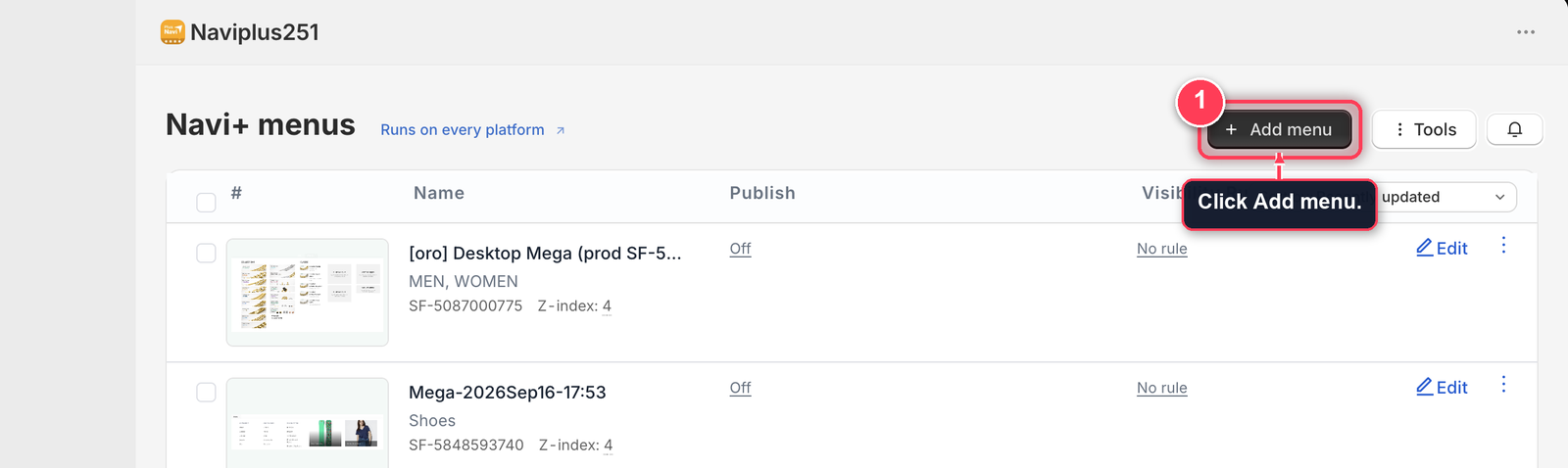
- In Navi+, click Add menu.
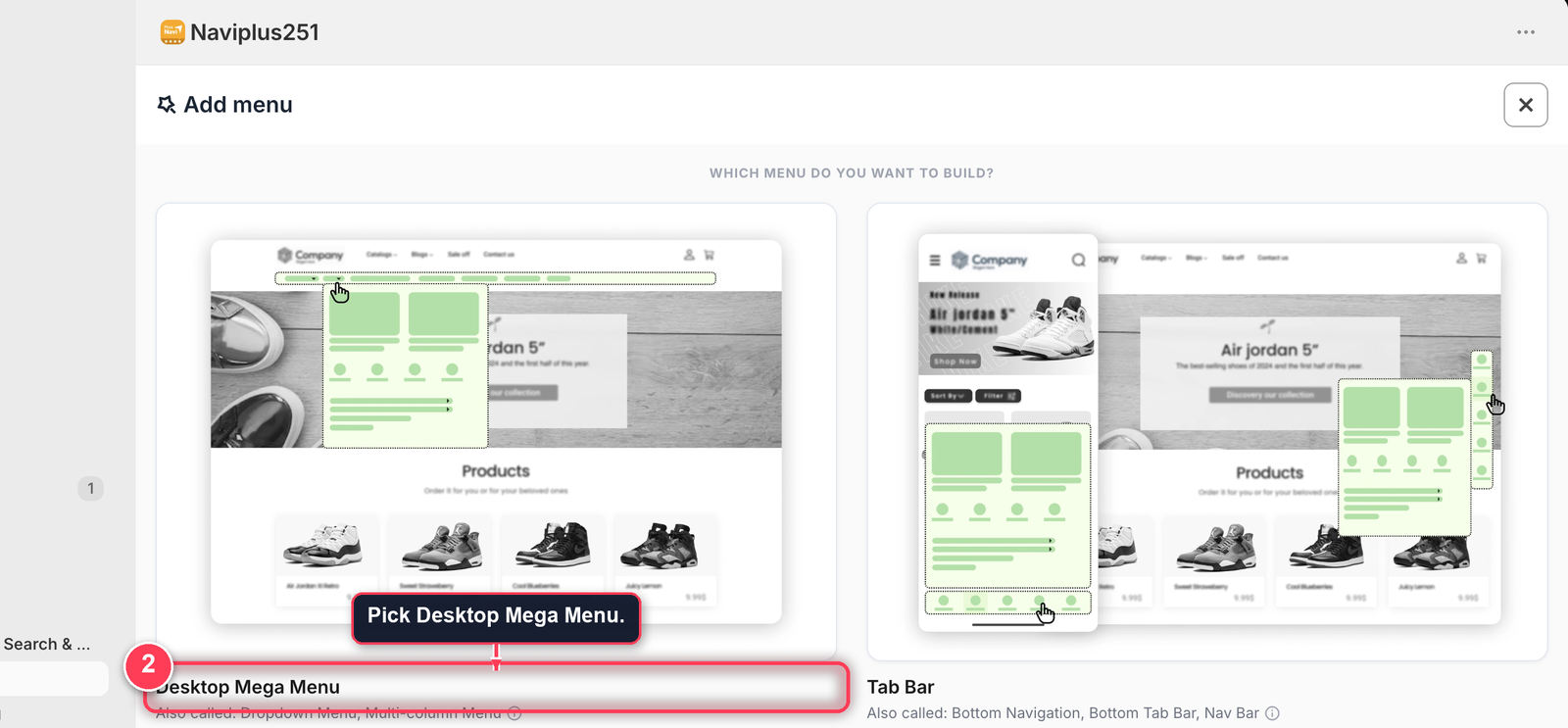
- Pick Desktop Mega Menu.
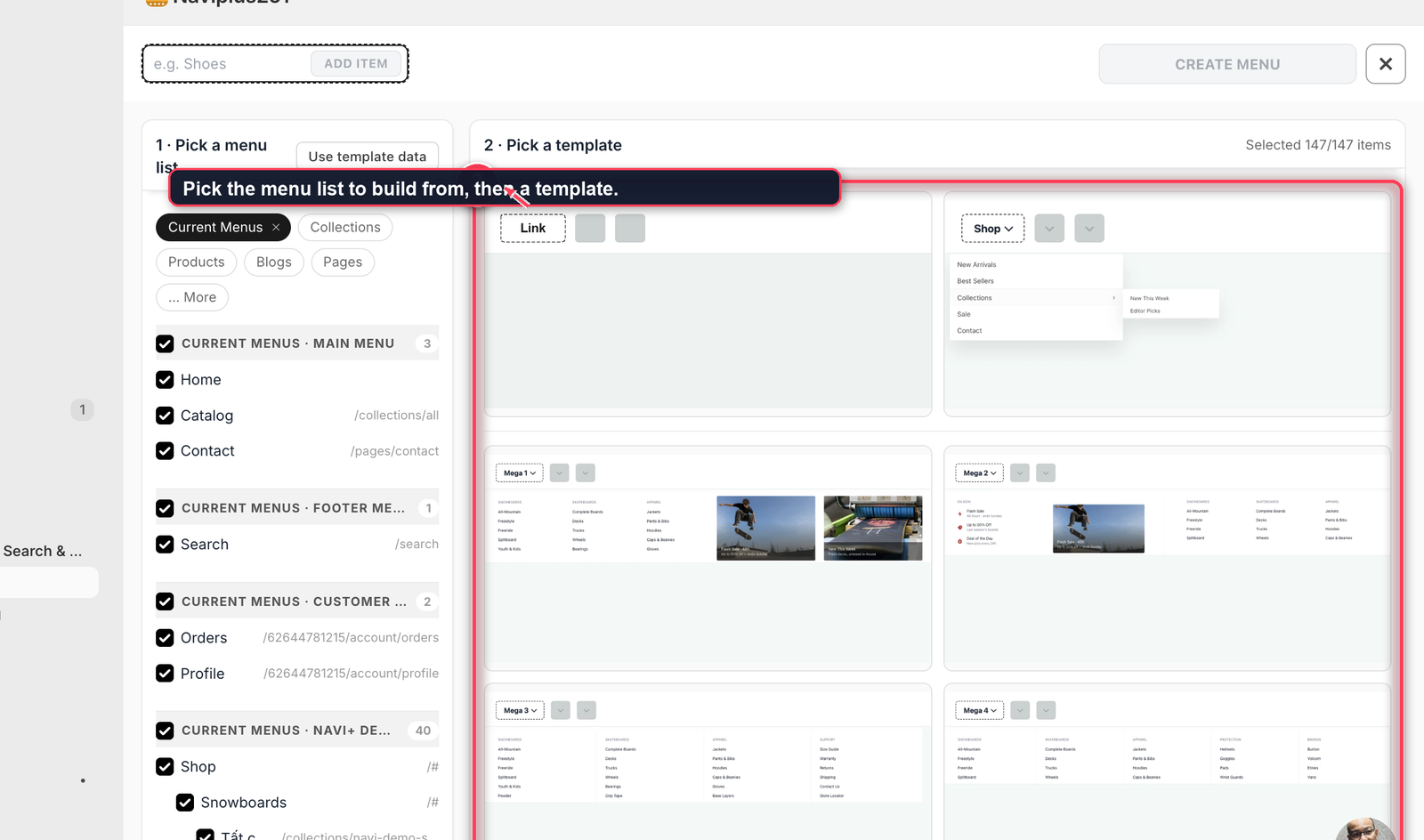
- Pick the menu list to build from (left), then a template (right).
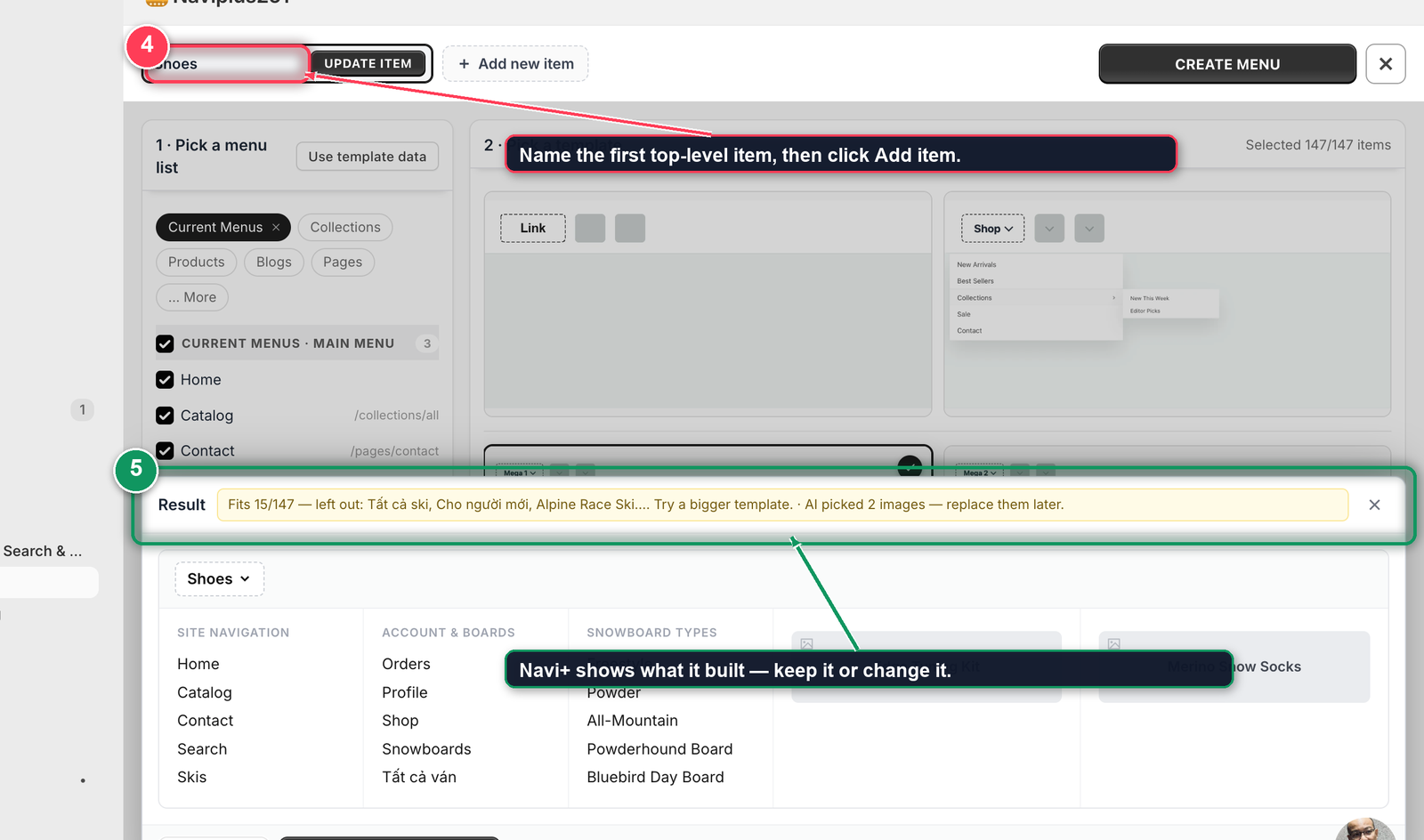
- Type a name for your first top-level item — for example
Shoes— and click Add item. - Check the Result strip: it says what went in and what was left out. Keep it, or click Change it.
- Click Looks good — next item and repeat for the next item, or click Create menu when you have enough.
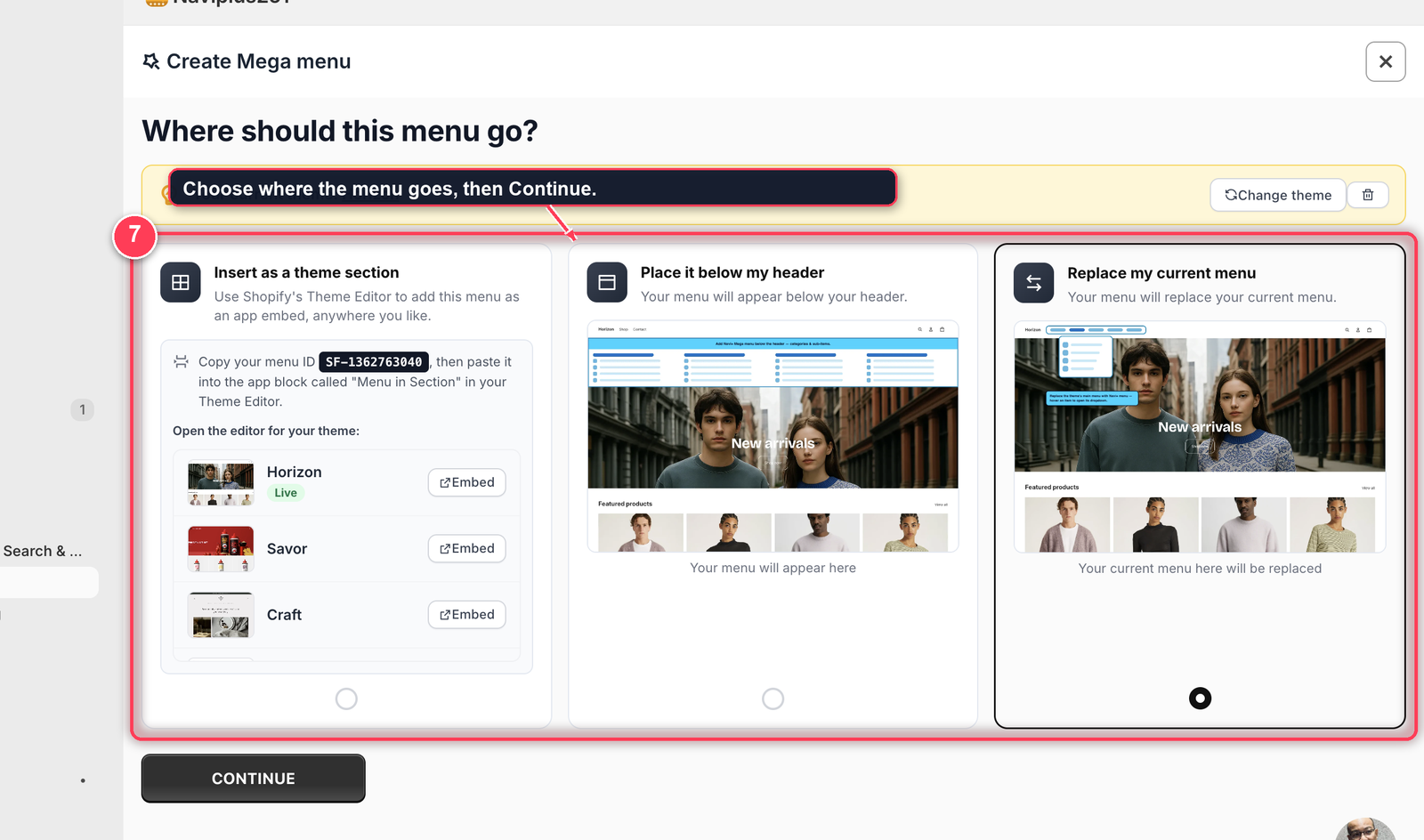
- Choose where the menu goes — Replace my current menu puts it in place of your theme’s navigation — then click Continue.
- Confirm the colors Navi+ measured from your theme, then click Continue. Your menu is created.
Check that it worked
Open your storefront on the theme you embedded Navi+ on — from your Shopify admin, Online Store > Themes > ••• > Preview. Hover your header: the mega menu opens.
Don’t see it? Menu not showing on your store? walks through the five checks in order.
Troubleshoot
The Result strip says items were left out
That’s normal — Navi+ only uses links that fit the template you picked. Pick a bigger template, or add the missing links later in the editor.
My old theme menu still shows next to the new one
The placement was “Insert as a theme section” or “Place it below my header”, which adds the menu without removing the old one. See Hide your theme’s own menu.
I want a mobile version too
A Desktop Mega Menu doesn’t fit a phone screen. Build a Mobile Menu as well — it can start from the same navigation.
Next: Which menu fits your store? — the other five menu types.
Did this page answer your question?
Need a hand? Chat with us in the app or write to [email protected] — send your store URL and the menu name and we'll look at it with you.